Argh. Fun day of setting up LocalDB.
First, you have to have it installed. Unfortunately, our friend http://downloadsqlserverexpress.com/ is busted, and one of the more promising links from MSDN is busted too.
If I'm remembering correctly, the new location seems to be here:
https://www.microsoft.com/en-us/download/details.aspx?id=54284
But the real sticking point for me is that the default connection string for LocalDB from the Web App Template in Visual Studio 2015U3 -- at least if you've installed LocalDB from SQL Server Express 2016 -- doesn't work. The real pain was that I trusted the template, but SQL Server Management Studio was working with LocalDB just fine.
Here are the steps I used to create the solution...
From microsoft.com:
From the File menu, select New > Project.
From the left pane, select Templates > Visual C# > Web.
Select the ASP.NET Core Web Application (.NET Core) project template.
Enter ContosoUniversity as the name and click OK.
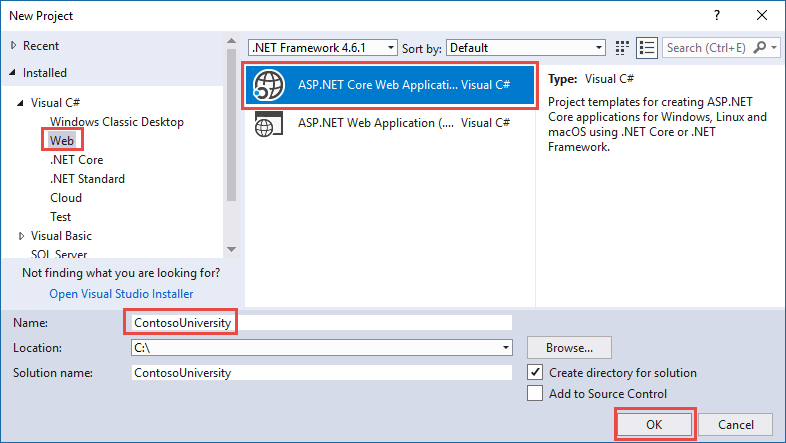
Now if I did everything correctly (yes, I took the default name instead of changing it to ContosoUniversity, for instance), here's the appsettings.json file's connection string that came out of that template...
"DefaultConnection": "Server=(localdb)\\\\mssqllocaldb;Database=aspnet-WebApplication2-ac2d2954-804a-4157-821e-f0e494fdb334;Trusted_Connection=True;MultipleActiveResultSets=true",
... and here's what actually works...
"DefaultConnection": "Server=(localdb)\\mssqllocaldb;Database=BoodaPow;Trusted_Connection=True;MultipleActiveResultSets=true"
It's just an extra backslash, as far as I can tell. Not sure how I could've introduced that, but perhaps I did?
I ended up getting the correct format from here, which is the github repo for the completed Contoso U example I referenced earlier.
Enjoy. Your C:\Users\YourUserName\ folder is now full of mdf & tdf files, just like you wanted.